
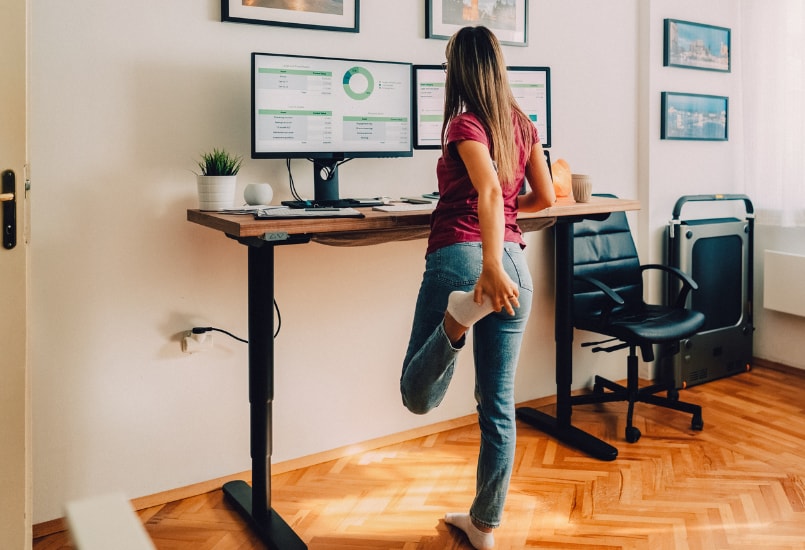
You bought a standing desk to save your spine, boost your energy, and escape the dangers of a sedentary lifestyle. But lately, your feet ache, your lower back feels stiff, and you find yourself slumping over your keyboard by mid-afternoon.
If this sounds familiar, you aren’t alone. Simply standing up isn't a magic fix for posture and fatigue—without proper standing desk ergonomics, poor standing habits can cause just as much physical strain as sitting all day. Slouching, locking your knees, or standing on hard surfaces for hours without breaks can quickly lead to chronic discomfort and joint fatigue.
Whether you just set up a brand-new adjustable desk or have been using one for years, mastering how to use a standing desk properly is the key to avoiding injury and unlocking the real health benefits of an active workstation. Small ergonomic tweaks—like adjusting screen height, choosing supportive footwear, and alternating between sitting and standing—make all the difference.
Here are the 10 essential standing desk do’s and don’ts to help you optimize your setup, improve your posture, and maximize your productivity throughout the workday.
--altImgStart--{"link":"https://s3.springbeetle.com/prod-us2-bucket/smilingmanatworkwhileusingastandingdesk_20261008_5IvwWAxx.png","alt":"smiling man at work while using a standing desk"}--altImgEnd--
The 5 Standing Desk Do’s
1. Do Transition Slowly (Follow the 20:80 Rule)
When you first get an adjustable desk, it’s tempting to stand for your entire eight-hour shift. However, jumping straight into long standing sessions puts sudden stress on your back, hips, and feet.
- How to do it right: Start small by standing for 15 to 20 minutes out of every hour. Over several weeks, gradually build up your endurance.
- The ideal ratio: Aim for a 1:1 or 2:1 sit-to-stand balance (for example, sitting for 30–40 minutes and standing for 20–30 minutes). Balance is key!
2. Do Set Your Desk at Elbow Height
One of the most common standing desk mistakes is positioning the desk surface too high or too low, which strains the shoulders and forearms.
- How to do it right: Stand up straight with your shoulders relaxed. Adjust the height of your desk until your elbows form a 90to 100 angle when resting your hands on the keyboard.
- Wrist check: Your wrists should lie neutral and flat across the desk surface rather than bending up or down.
3. Do Position Your Monitor at Eye Level
Hunching over to read your screen causes severe neck strain—often referred to as "tech neck."
- How to do it right: Position your monitor about an arm's length away (20–30inches). The top third of your monitor screen should be at or slightly below your horizontal eye level.
- Pro tip: If you use a laptop, place it on a riser or stand and connect an external keyboard and mouse to keep your screen at eye level and wrists comfortable.
4. Do Invest in an Anti-Fatigue Mat & Supportive Shoes
Standing on a hard floor in flat dress shoes, high heels, or bare feet places immense pressure on your heel arches, knees, and lower back.
- How to do it right: Use a high-quality anti-fatigue mat. These cushioned mats encourage tiny, subconscious muscle movements in your calves and feet, which improves blood circulation and reduces fatigue.
- Footwear advice: Pair your mat with supportive sneakers or shoes that provide adequate arch support.
5. Do Keep Moving While You Stand
Standing still is just as static as sitting still. To keep blood flowing and avoid muscle stiffness, dynamic movement is crucial throughout the workday.
- How to do it right: Shift your weight from foot to foot, stretch your calves, perform gentle ankle rolls, or use a balance board.
- Micro-breaks: Take short walking breaks or stretch every 30 to 60 minutes to keep your body loose and energized.
--altImgStart--{"link":"https://s3.springbeetle.com/prod-us2-bucket/womanwithstretchingwhilestanding_20261008_uUXYZ0cn.png","alt":"woman with stretching while standing"}--altImgEnd--
The 5 Standing Desk Don’ts
1. Don’t Stand Still All Day
Prolonged standing without moving or taking sitting breaks can lead to joint lock, pooling blood in the legs, and increased risk of varicose veins and lower back tightness.
- The fix: Never treat a standing desk as an "all-or-nothing" tool. Alternate frequently between sitting, standing, and walking.
2. Don’t Lock Your Knees
When standing for extended periods, many people unconsciously lock their knees backward to rest on their joints. This cuts off optimal blood circulation and tilts your pelvis, leading to lower back pain.
- The fix: Maintain a soft, subtle bend in your knees at all times. Keep your core gently engaged to support your spine naturally.
3. Don’t Slouch or Lean on One Hip
Shifting all your weight onto one leg or leaning heavily onto your desk surface skews your alignment, causing hip tightness and spinal asymmetry.
- The fix: Practice solid standing desk posture tips: keep your feet shoulder-width apart, distribute your body weight evenly across both feet, and pull your shoulder blades down and back.
4. Don’t Forget About Your Ergonomic Chair
Switching to a standing desk doesn't mean throwing away your office chair. Sitting is still a necessary part of a healthy, balanced workday routine.
- The fix: Keep a supportive, highly adjustable ergonomic chair nearby. When you feel tired or notice your standing form slipping, lower your desk and sit down.
5. Don’t Work Directly on an Un-Elevated Laptop
Working straight off a laptop on a standing desk forces you into an ergonomic nightmare: if the keyboard is at the right height, the screen is too low (causing neck hunching); if the screen is at eye level, the keyboard is too high (causing wrist pain).
- The fix: Always separate your typing surface from your viewing surface when using a laptop by utilizing an external monitor, a laptop stand, and separate peripherals.
Top Recommendations
--altImgStart--{"link":"https://s3.springbeetle.com/prod-us2-bucket/FlexiSpotE7ProPlusStandingDesk_20261008_fY9cCqec.png","alt":"FlexiSpot E7 Pro Plus Standing Desk"}--altImgEnd--
FlexiSpot E7 Pro Plus Standing Desk
The FlexiSpot E7 is the brand's signature flagship model, offering an unbeatable combination of stability, customizability, and a 15-year frame warranty.
- Key Specs: Dual motor, 3-stage legs, 355-lb weight capacity, 22.8'' to 48.4'' height range.
- Best For: Most home office users looking for a rock-solid, mid-range desk that won't wobble with dual monitors.
FlexiSpot E7 Pro Premium Standing Desk
--altImgStart--{"link":"https://s3.springbeetle.com/prod-us2-bucket/FlexiSpotE7ProPremiumStandingDesk_20261008_EilDaXCD.png","alt":"FlexiSpot E7 Pro Premium Standing Desk"}--altImgEnd--
The FlexiSpot E7 Pro upgrades the classic base with a semi-C leg design for extra legroom, an upgraded magnetic cable tray, and a massive weight limit.
- Key Specs: Dual motor, 440 lb weight capacity, integrated cable management, USB charging port, lock mode.
- Best For: Heavy-duty setups with heavy equipment, desktop PCs, and multiple monitor arms.